The built-in Shopify way
The Shopify admin has no setting that changes a product's price at a set time and changes it back later (Shopify Plus stores have Launchpad for scheduled sales). Without an app you have two options:
- Edit the prices yourself when the sale starts — with the bulk editor or a CSV import — and again when it ends. Keep an export of the original prices so you can put them back.
- Use an automatic discount (Discounts → Create discount → Amount off products) with a start and end date. The discount is applied in the cart and checkout; the product's price and compare-at price stay as they are, so how the sale shows on product pages depends on your theme.
Step by step with ShopCSV
ShopCSV is a bulk product editor that opens inside your Shopify admin and shows products and variants in one editable grid. Every change is listed in Review Changes before it is saved, and a save can be undone later from History.
-
1Filter and check the sale products
Open ShopCSV from Apps in your Shopify admin. Filter the grid to the products on sale — for example by Collection, Tag or Vendor — and check their rows (the header checkbox checks every row on the page).
-
2Keep the old price as the compare-at price
So shoppers see a strikethrough price, choose Bulk → Compare Price → Set by Formula, enter
priceand apply. Every checked row's compare-at price becomes its current price. Skip this step if your compare-at prices are already set. -
3Lower the prices
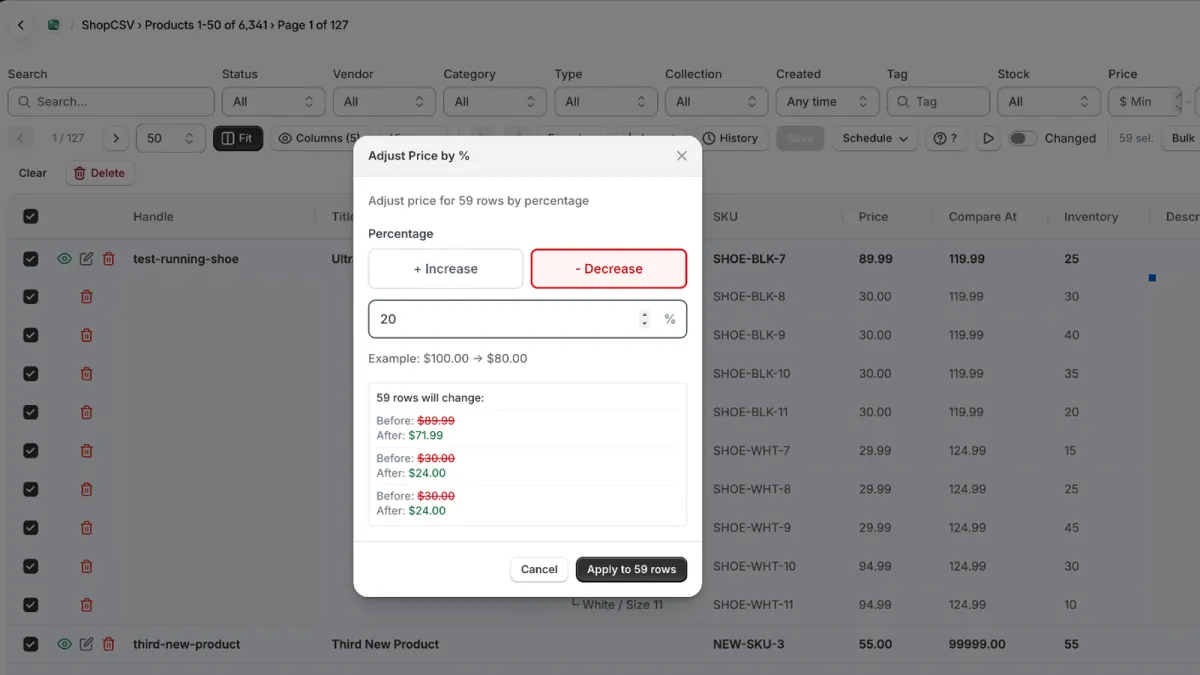
Choose Bulk → Price → Adjust by %, pick Decrease, enter for example 20 and apply. Add Round to .99/.95 if you like clean endings. Bulk → Several Changes… does all of this in one dialog. The changed cells turn yellow — nothing is in Shopify yet.
-
4Schedule instead of saving
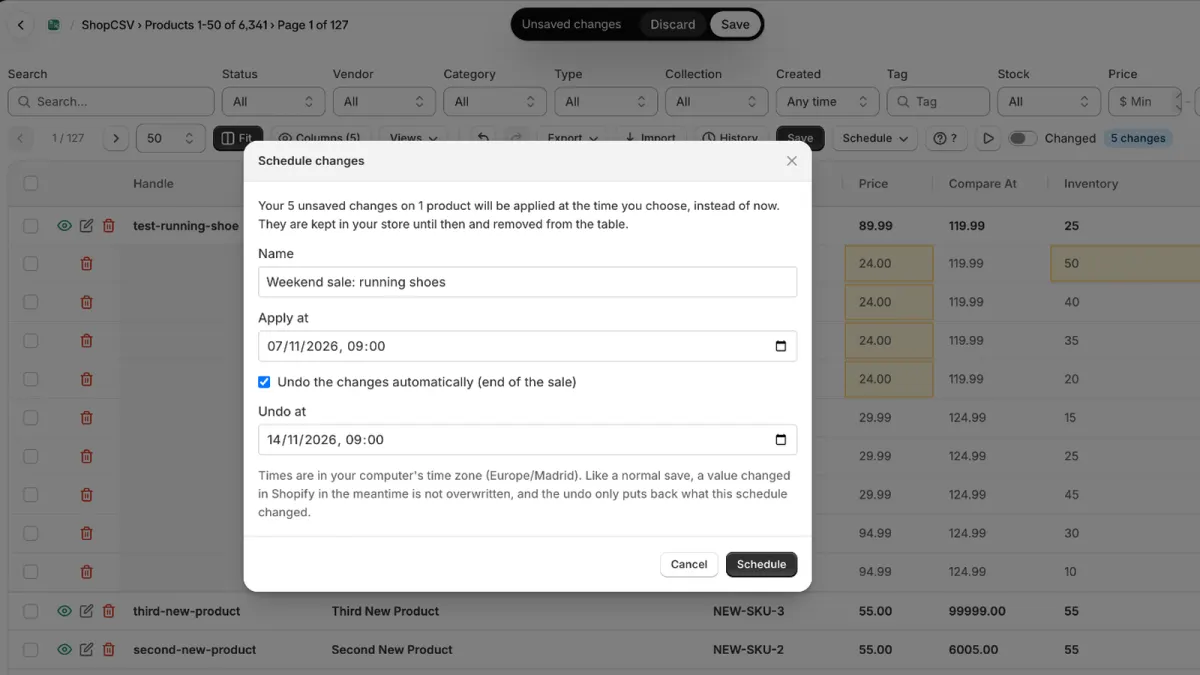
Open Schedule → Schedule these changes… next to Save. Give the sale a Name, pick Apply at, tick Undo the changes automatically (end of the sale) and pick Undo at. Click Schedule. The changes leave the table and wait in your store until the start time; you don't need to keep ShopCSV open.
-
5Check, cancel or end the sale early
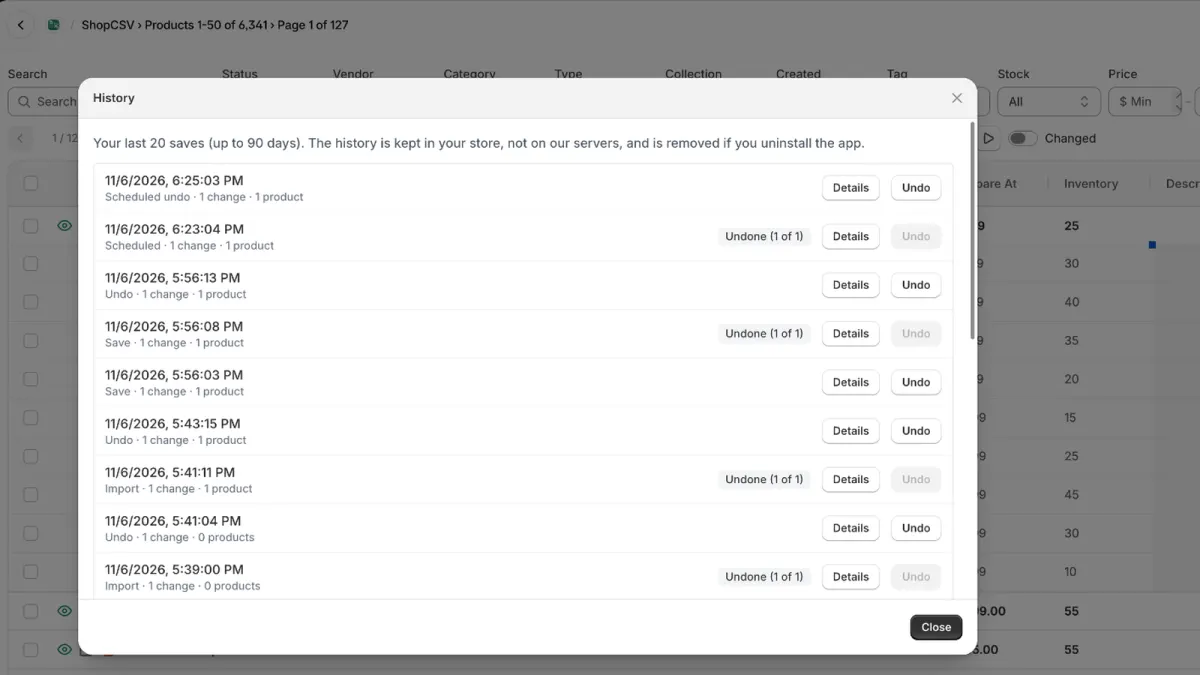
Schedule → Scheduled changes lists your schedules and their state. Cancel one before it starts; once it has started, choose Undo now to end it early or Keep changes to make the sale prices permanent. Each start and end appears in History.
Good to know
- Only the sale is undone. When the sale ends, ShopCSV puts back only what the schedule changed. If someone changed a price during the sale, that newer change is kept.
- Nothing newer is overwritten when it starts, either. Like a normal save, a value that changed in Shopify after you scheduled it is not overwritten.
- Best for prices, compare-at prices, tags and titles. Stock changes are checked against the stock at the time you scheduled them, so with orders in between they are usually skipped.
- Times are in your computer's time zone, shown in the dialog. Up to 20 schedules can wait at a time, on every plan (within your plan's product limit).
- Shopify Flow: ShopCSV can start a Flow workflow when a scheduled sale starts or ends — for example to post a message to your team.
- Recurring sales or price rules (every Friday, every new product) are set up in Schedule → Automations…; runs appear in History and can be undone.
- Not sure about the discount itself yet? See how to bulk edit prices.
See it in two minutes
The ShopCSV overview video shows editing in the grid, bulk actions with a preview, scheduled sales, History and undo, and CSV and Excel files.