The built-in Shopify way
Shopify's own bulk editor works well when you type new prices by hand:
- In your Shopify admin, go to Products and tick the products you want to change.
- Click Bulk edit. A spreadsheet-like editor opens; add the Price and Compare-at price columns if they aren't shown.
- Type the new value in each cell, then click Save.
For a percentage change across many variants, the usual built-in route is a CSV round trip: Export your products, calculate the new prices with a formula in Excel or Google Sheets, and Import the file back with the option to overwrite products with matching handles. It works, but you don't see a list of what will change before the import, and there is no one-click way to put the old prices back afterwards — keep the original export as your backup.
Step by step with ShopCSV
ShopCSV is a bulk product editor that opens inside your Shopify admin and shows products and variants in one editable grid. Every change is listed in Review Changes before it is saved, and a save can be undone later from History.
-
1Open ShopCSV and filter the products
Install ShopCSV and open it from Apps in your Shopify admin. Narrow the grid down with the toolbar filters: Search, Status, Vendor, Category, Type, Collection, Tag, Stock or a Price range. Choose 25, 50 or 100 products per page.
-
2Check the rows to change
Tick the checkbox of each product or variant row, or use the checkbox in the header to check every row on the page. Product rows carry the first variant's price; variant rows are indented below them.
-
3Choose Bulk → Price → Adjust by %
Pick Increase or Decrease and enter the percentage. The dialog shows how many rows will change and examples of before and after, then Apply to N rows. The same menu has Adjust by $, Set Price, Round to .99/.95 and Set by Formula (for example
cost * 2.5orround(price * 1.1, 0) - 0.01).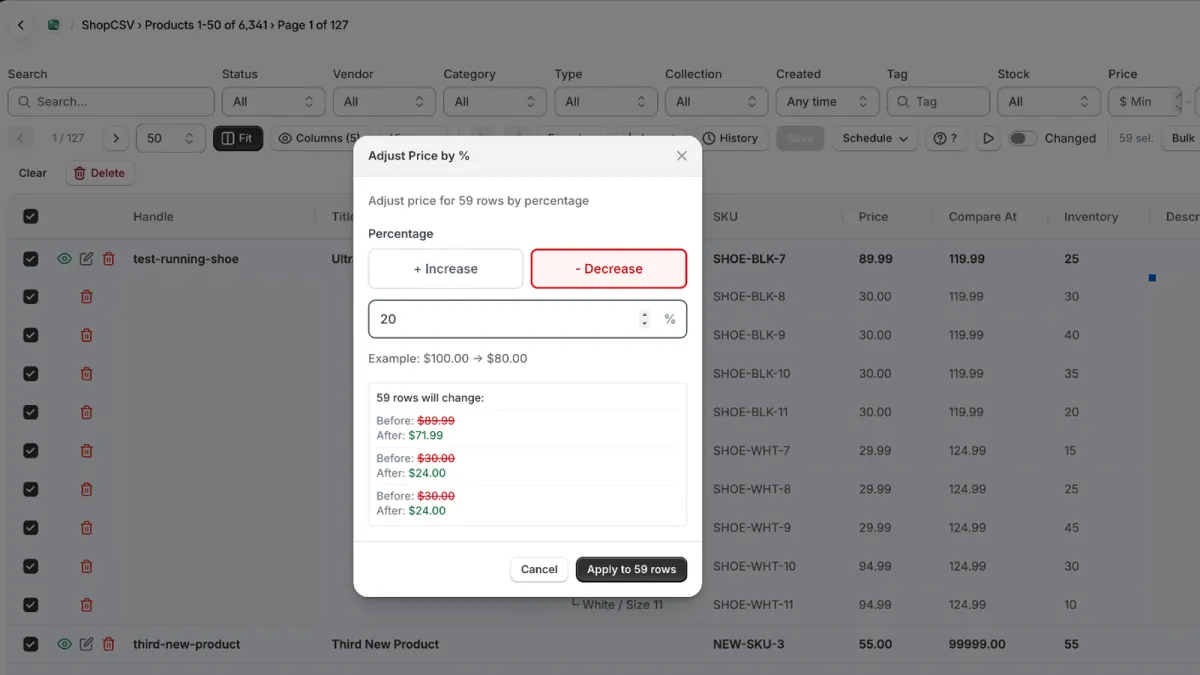
-
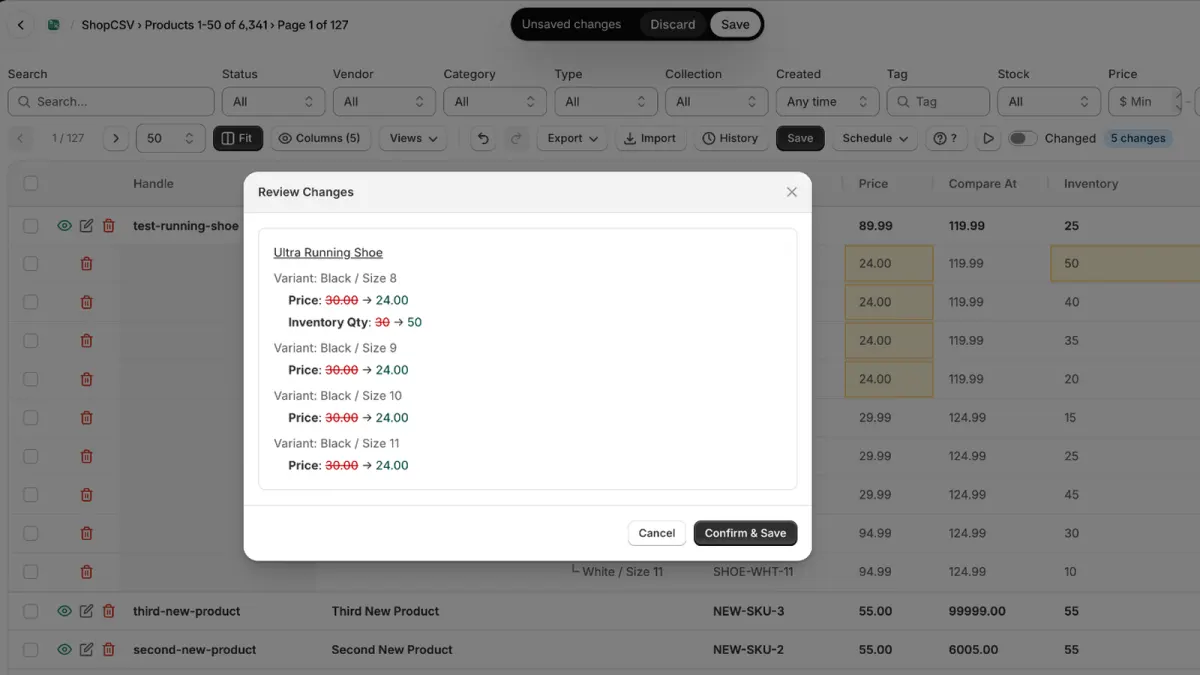
4Review and save
Changed cells turn yellow and nothing is in Shopify yet. Click Save (or press ⌘S / Ctrl+S): Review Changes lists every product and variant with the old and new value. Click Confirm & Save. ShopCSV then tells you how many changes were applied; a price that someone changed in Shopify after you loaded the page is not overwritten but shown to you.
-
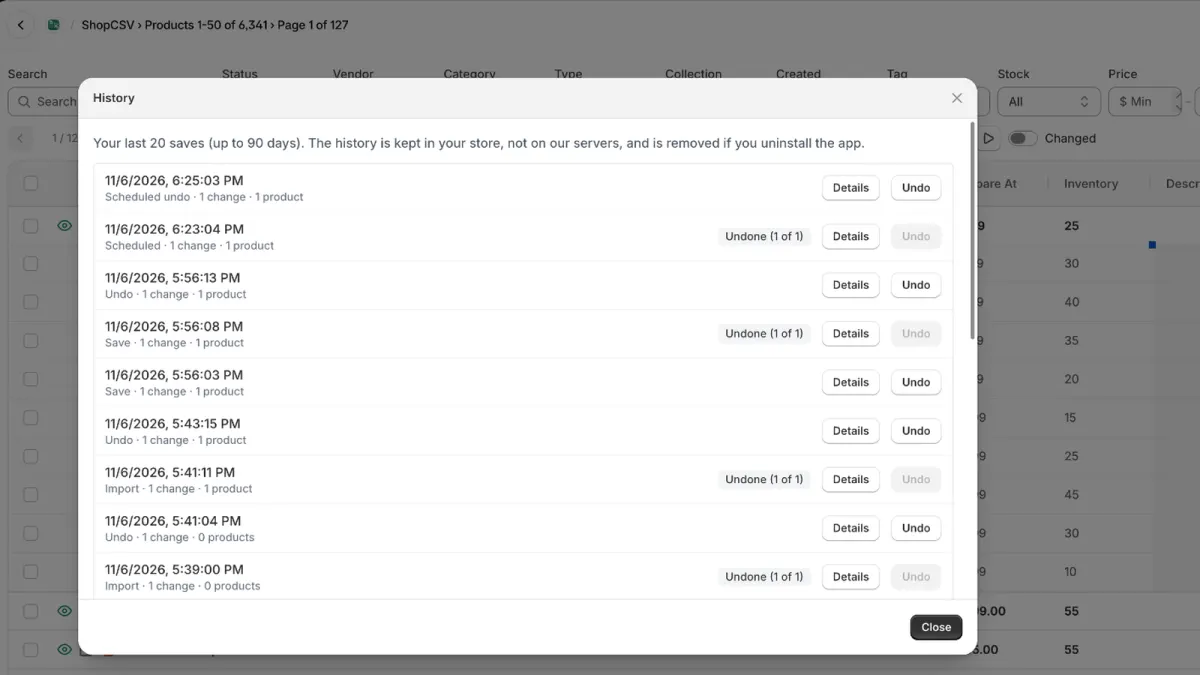
5Undo later if you need to
Open History to see your last 20 saves and imports (up to 90 days) with the before and after of each change. Undo puts the old prices back and leaves alone anything that changed since.
Good to know
- Compare-at prices have the same actions under Bulk → Compare Price. To show a strikethrough price before a discount, set the compare-at price to the current price first with Set by Formula and the formula
price. - Several changes in one go: Bulk → Several Changes… chains up to six changes in order — for example +10%, then round to .99 — and shows every row before and after.
- Formulas can use
price,compare_at,costandinventorywithround,min,max,floorandceil. Rows where a formula can't be calculated (for example no cost) are left unchanged. - More than one page: bulk actions change the checked rows on the current page. To change every matching product in your catalog at once, create a rule in Schedule → Automations… with your filter and a price action and click Run now, or use Export All, edit the file and import it. Both are recorded in History and can be undone.
- Markets and B2B prices: Columns → Price lists shows each price list's fixed prices as a column in its currency; paste and the fill handle work there too.
- Want it to happen later? Instead of Save, choose Schedule — see how to schedule a sale.
See it in two minutes
The ShopCSV overview video shows editing in the grid, bulk actions with a preview, scheduled sales, History and undo, and CSV and Excel files.